
As we all know (or maybe you don’t), deploying things in the cloud like Microsoft Azure is very easy since it’s just a couple of clicks in your browser. And since it is that easy, it brings about one big problem, which is that it is easy to make mistakes or deploy things that you shouldn’t be deploying. Sometimes due to the company’s budgets, policies or compliance, there are situations where you want to be able to restrict what resources can be deployed in Azure.
Luckily, Azure has a built-in solution for this called Azure Policy. Azure Policy is basically a set of rules you can assign at different scopes, such as a subscription or resource group to enforce or restrict what resources can be deployed or how they are configured.
Now that we got the premise out of the way, let’s get to the fun part: seeing Azure Policy in action!
The goal of this lab is to require all resources in a specific resource group to have the Environment = Lab tag.
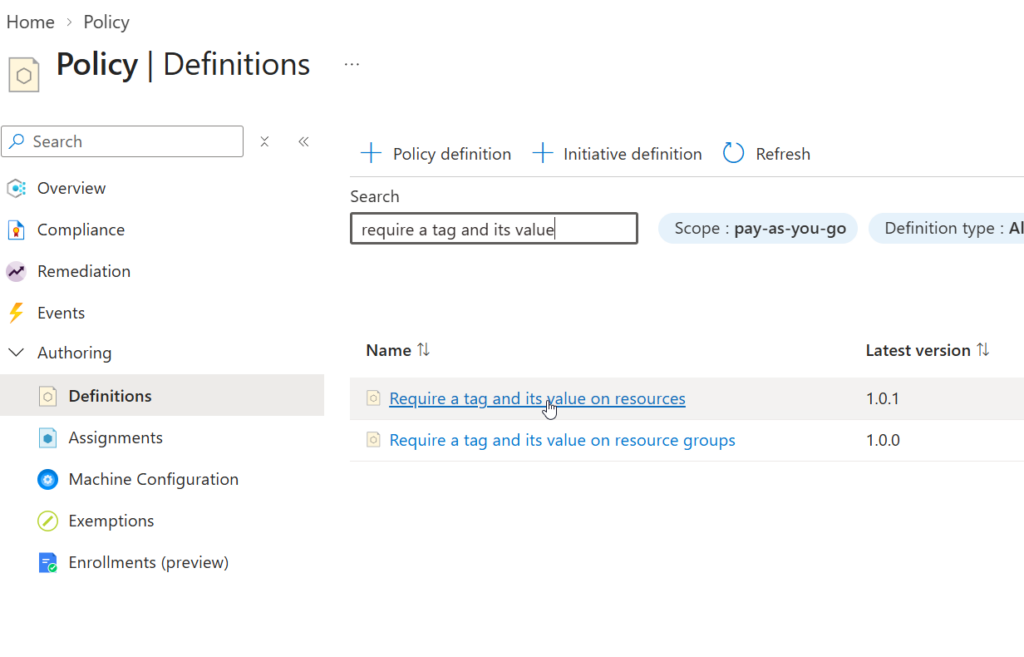
Firstly, we go to the Azure Policy section then definitions and search for the policy “Require a tag and its value on resources”
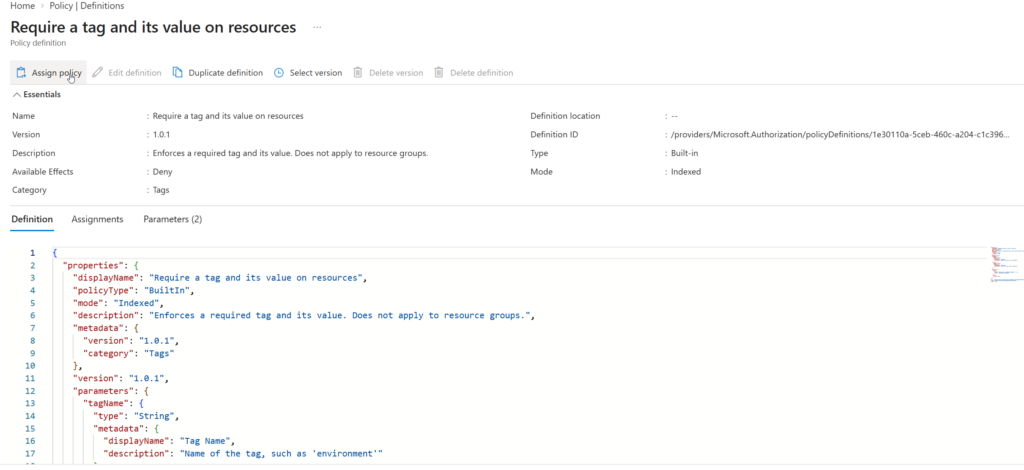
Then we click on Assign policy to assign the policy:
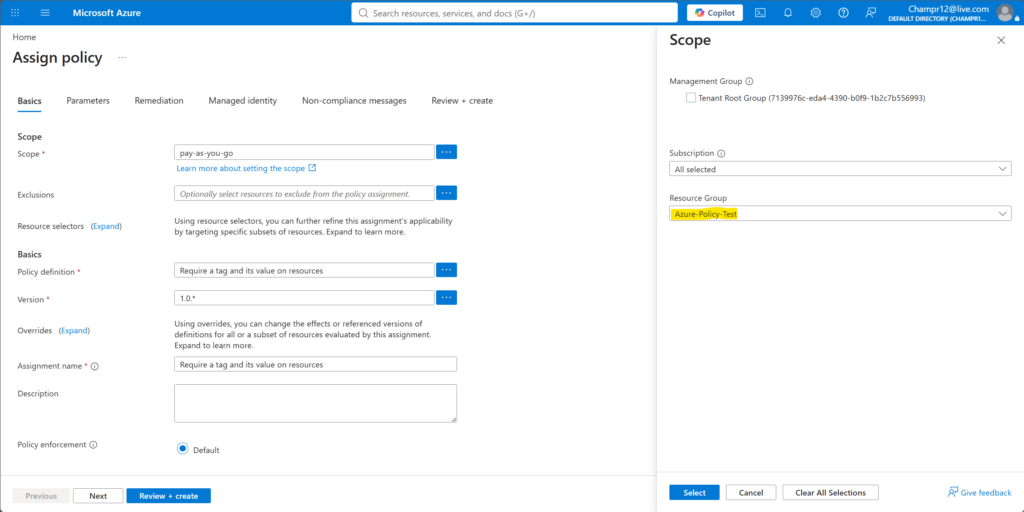
In the scope section, we can specify which resource group we want to apply the policy to, we’ll be applying it to the Azure-Policy-Test resource group in this case:
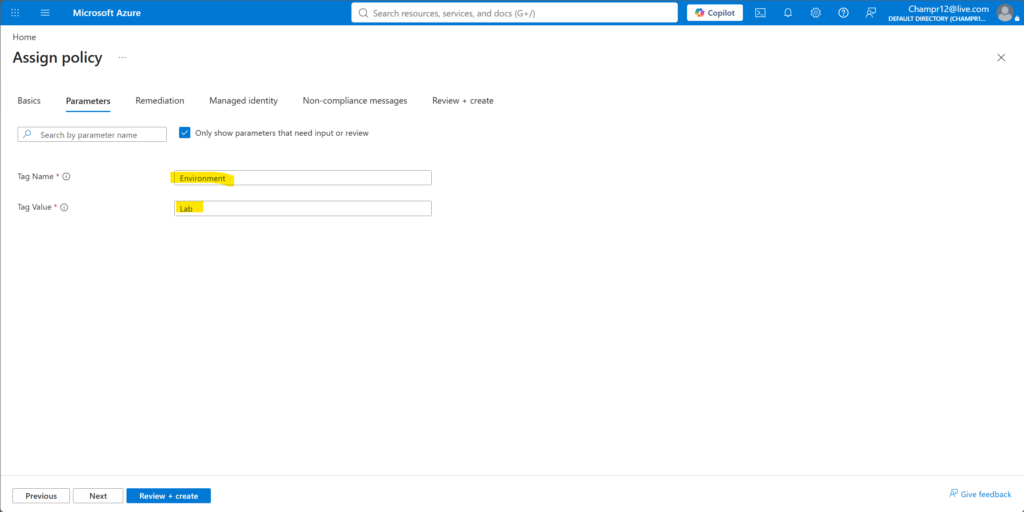
Then in the Parameters section, we specify the required Tag name and value for the resources, which is Environment for the name and Lab for the value:
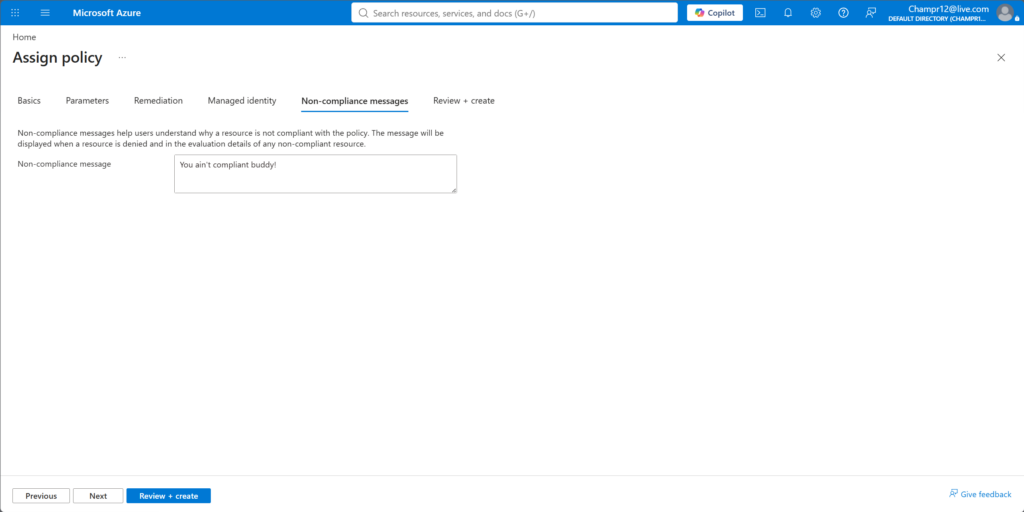
Optionally you can also set a non-compliance message:
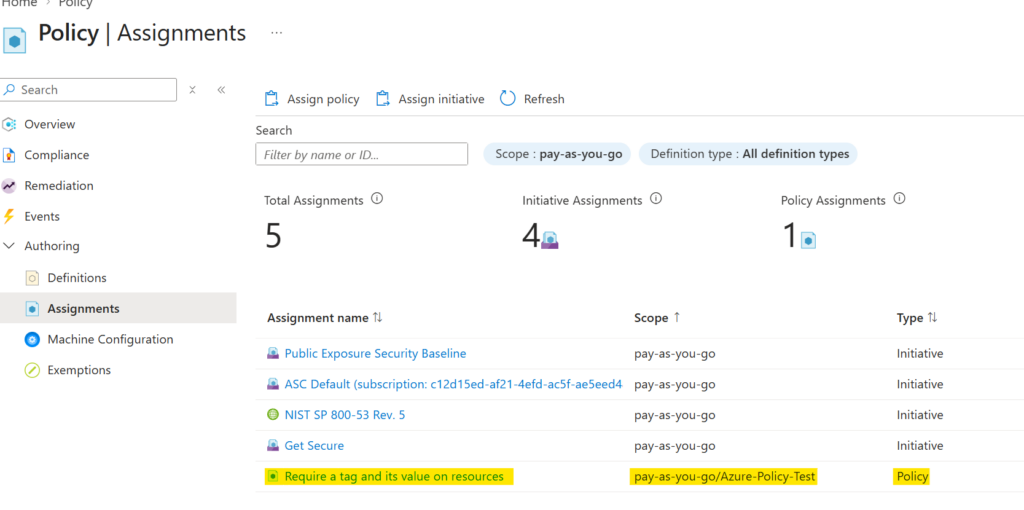
Once the policy is assigned, you can see it under the Assignments section in Azure Policy:
So now that we assigned the policy to our resource group, we test to see if it actually works! So in this case, we can try creating a resource without the tag and see if the policy will stop us from creating it.
I’m just going to create a simple storage account in the resource group:
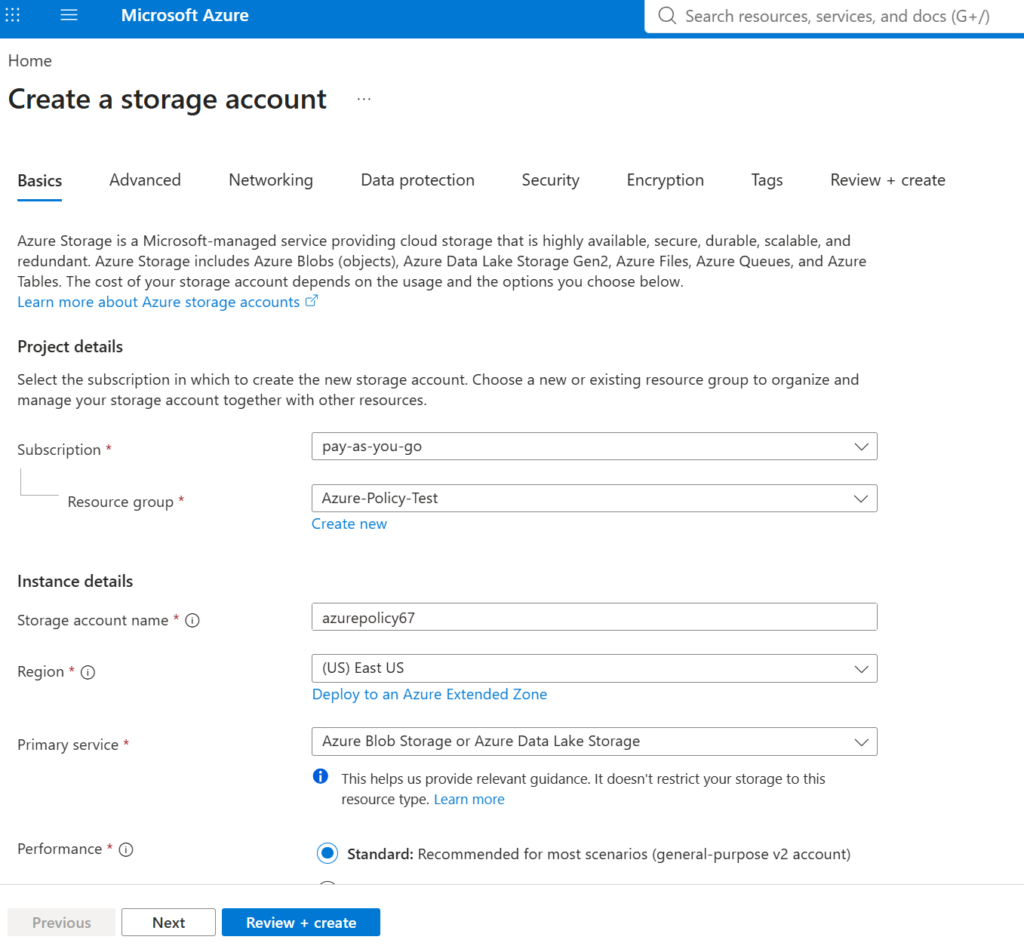
Then when I go straight to Review + create, I get this error:
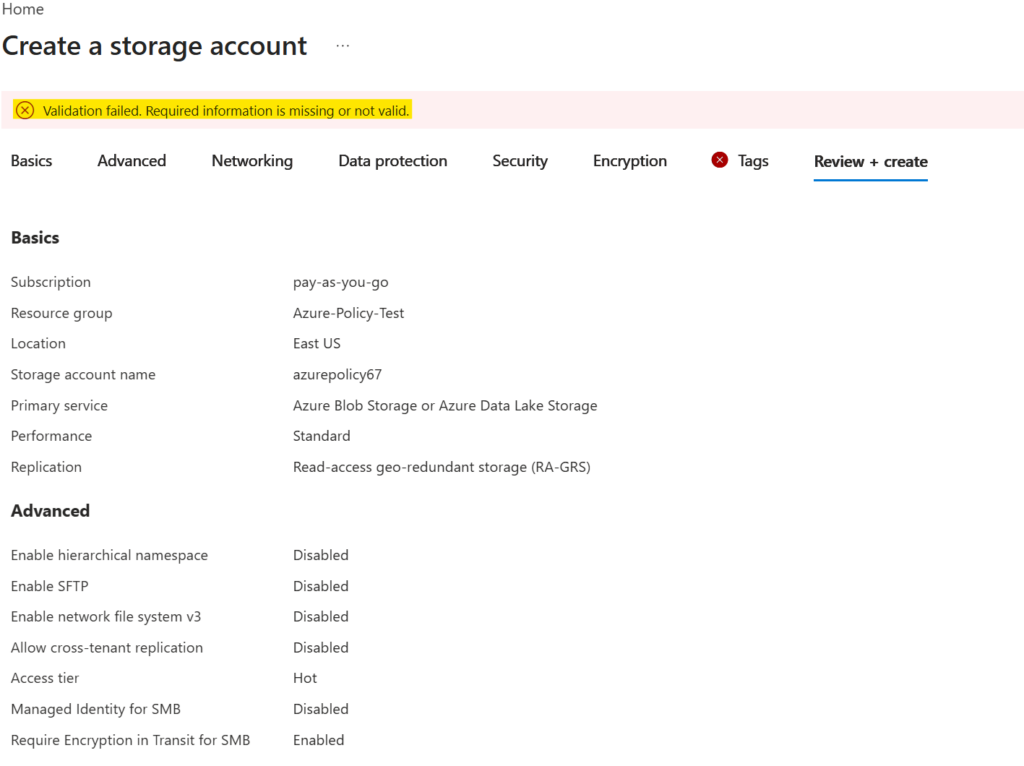
And if you click on the Tags section with the red X on it, you’ll see the compliance message that we set for the policy:
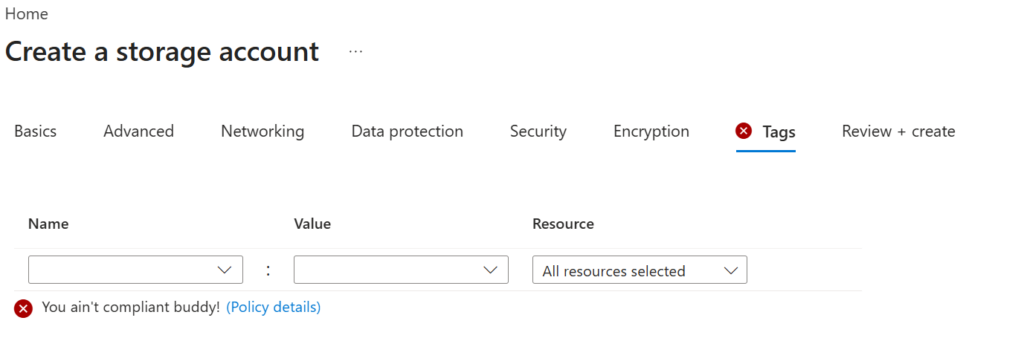
Awesome! Looks like our policy is working as expected.
Troubleshooting Notes:
While playing around with my policies for this lab, I created another policy that added the tag with the name Environment and value of Lab:
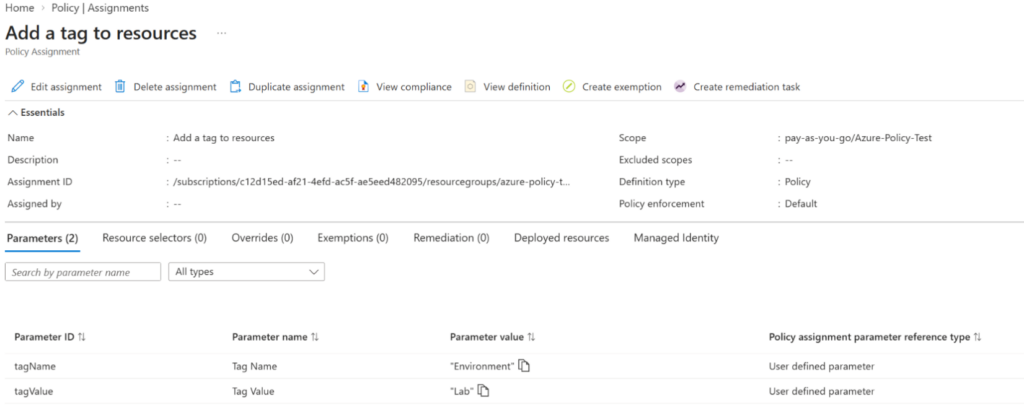
So when I created the other policy to require the tag, Azure was letting me deploy the storage account and I was confused about why. Then I checked my other policies to see if there were any conflicts and I found out about that “Add a tag to resources” policy I created earlier. This was a good reminder that Azure evaluates policy effects in a specific order, and policies that append or modify properties can affect whether a later deny condition is triggered.
After working with Azure Policy for a little while, I’ve learned the fundamentals of how a policy works and how to apply it to a resource group by setting up the required parameters. Although this lab only uses tags, this can scale conceptually to different configuration requirements such as allowing a certain region, SKU or security settings for resources. In the world of modern cloud deployments, being able to put guardrails in place and reduce human error is especially useful since a single mistake can cost the company both time and money.
Sources:
https://learn.microsoft.com/en-us/azure/governance/policy/overview
https://learn.microsoft.com/en-us/azure/governance/policy/assign-policy-portal
https://learn.microsoft.com/en-us/azure/governance/policy/tutorials/create-and-manage