
Azure Resource Manager (ARM) templates can look intimidating at first, mostly because of the JSON format with all the quotes and curly brackets. But once you actually look at them, they become much more manageable when you understand that JSON organizes data in key-value pairs, with a colon between the key and the value, and when you understand the basic structure of an ARM template.
There are also a lot of premade ARM templates available that you can use outright or customize for your own needs. Because of that, being able to read and understand ARM templates is useful for the majority of general use cases you will run into.
Let’s dive deeper into an example ARM template below:
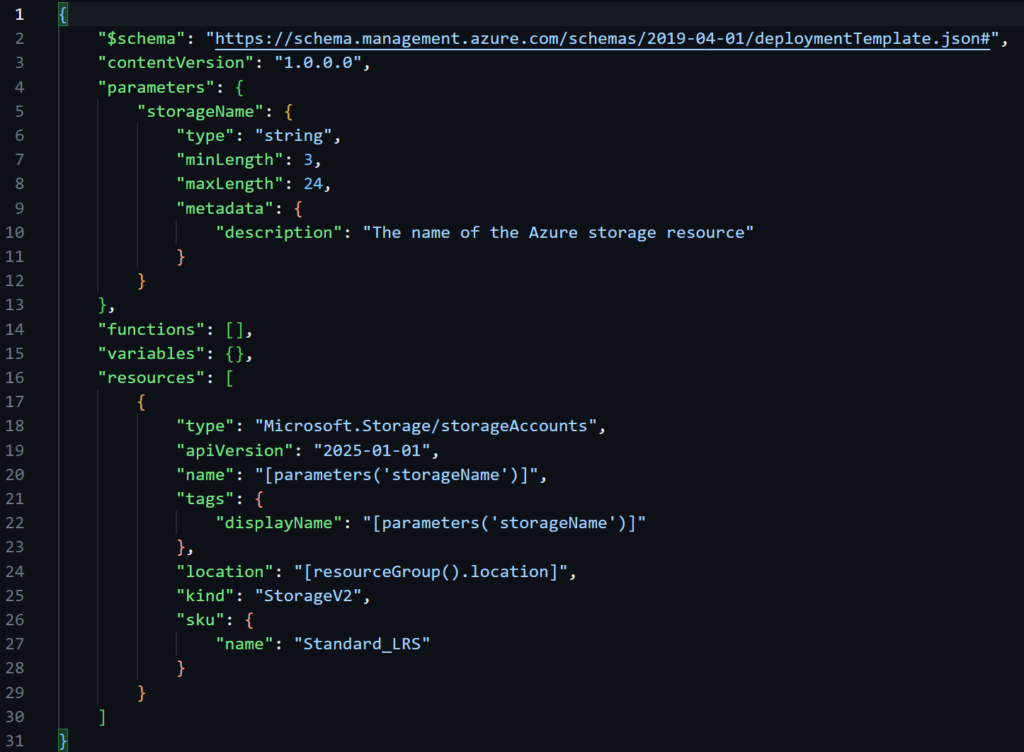
The purpose of this ARM template is simple: to deploy a general-purpose v2 Azure storage account using a name that we provide during deployment, with LRS as the SKU. Let’s break down the key parts of this ARM template by the most important key value pairs:
- “resources”: [] – This pair specifies what resources will actually be deployed with this template.
- Note that square brackets, shown as [], represent an array in JSON. An array is used to create an ordered list of items, such as strings, numbers, or objects.
- “type”: “Microsoft.Storage/storageAccounts” – This pair specifies what type of resource is going to be deployed. In this case, it is a storage account.
- The format for the type value is usually in the form of “resource provider namespace/resource type”, so in this case it is “Microsoft.Storage/storageAccounts”.
- “location”: “[resourceGroup().location]” – This pair specifies that the location of this resource will match the location of the resource group.
- “kind”: “StorageV2” – This pair indicates the type of storage account. In this case, it is a general-purpose v2 storage account.
- “sku”: {“name”: “Standard_LRS”} – This pair indicates the SKU of the storage account. In this case, it is LRS.
For this template, I also included something called parameters, which is an important concept in ARM templates. Parameters let you specify a value during deployment so that you can reuse the same template for different environments or use cases without relying on hardcoded values. As you can see in the template, I created a parameter called storageName, with the string type and minimum length of 3 and maximum length of 24 to fit the storage account name requirements.
Once the parameter is specified, I can use the storageName parameter in my resources definition. You can use the parameter with the syntax [parameters(‘name of the parameter’)]. In this case, I used [parameters(‘storageName’)] as the value for the name key.
Alright, now that we understand the ARM template that we created, we can get to the fun part: actually deploying the template!
There are multiple ways to deploy an ARM template, such as the Azure Portal, Azure CLI or Azure PowerShell. I will be using Azure PowerShell for this deployment. For Azure PowerShell, we can use the New-AzResourceGroupDeployment command with the required parameters -ResourceGroupName and -TemplateFile. Finally, we will also pass in the -storageName parameter with the value armdemo6776, which is the parameter that we defined in the template.

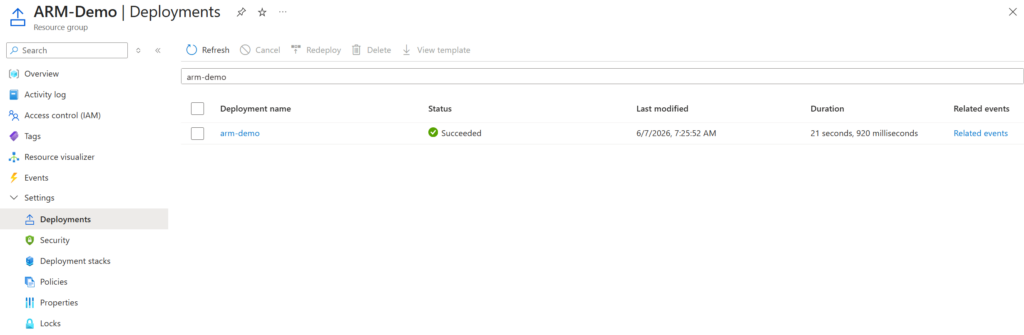
That output looks like a good sign! Now let’s check the deployment in the Azure Portal to confirm that the storage account was actually created. First we can check the Deployments section in the resource group:
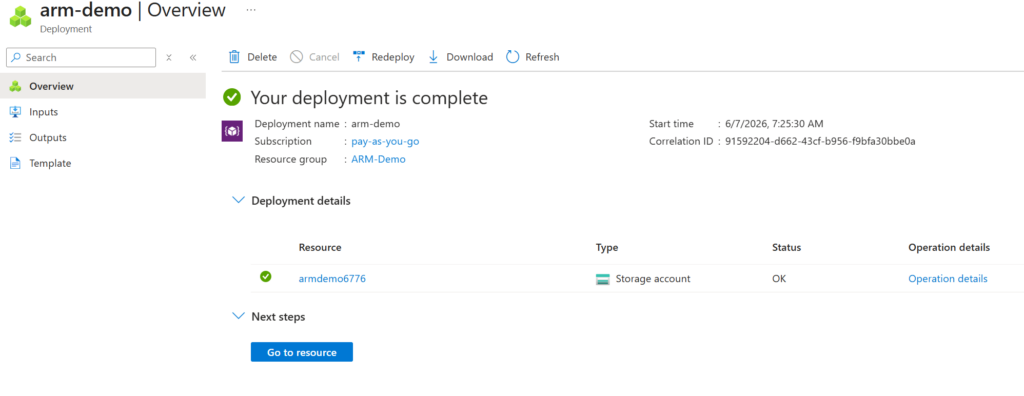
Then we can click on the deployment and check the Deployment details:
Finally to confirm, we go back to the Overview section in the resource group and check if the resource is there:
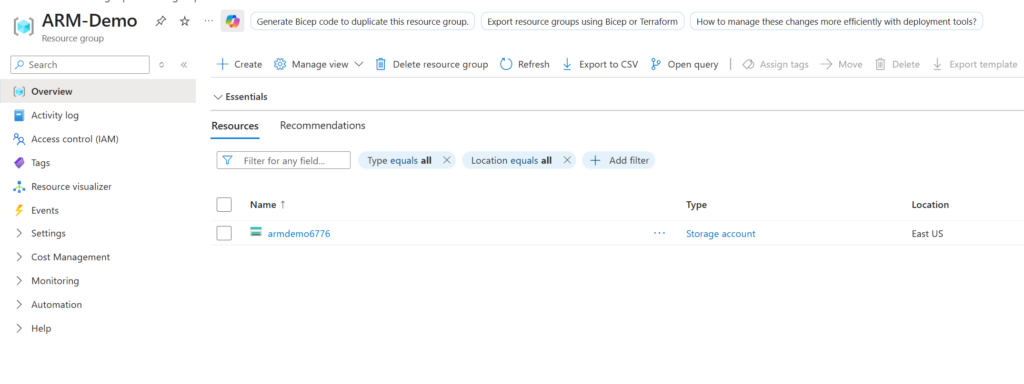
And there it is, we have successfully deployed the storage account with our ARM template!
As mentioned in the beginning, ARM templates may look scary when you first look at them. But once you get used to the JSON format and break the template down into individual sections, you can see that they are quite coherent to read and understand. This was a good first step into Azure infrastructure as code, and it helped me see how ARM templates can make Azure deployments more repeatable and easier to understand.
Sources:
https://stackoverflow.blog/2022/06/02/a-beginners-guide-to-json-the-data-format-for-the-internet/
https://learn.microsoft.com/en-us/training/modules/create-azure-resource-manager-template-vs-code/
https://github.com/Azure/azure-quickstart-templates/blob/master/quickstarts/microsoft.storage/storage-account-create/azuredeploy.json
https://learn.microsoft.com/en-us/powershell/module/az.resources/new-azresourcegroupdeployment?view=azps-16.0.0